
New listings
A newly listed home matches their search.


Quick and Simple Homes
Set up a customer saved search, explain its value, and follow up with a useful question. Learn the setup steps and the conversations that keep the search relevant.
Set up a saved search »A saved search uses a customer's home preferences to send automated property update emails. It helps them keep up with relevant homes without repeating the same search.
For agents, those updates create a practical reason to connect: explain a listing, ask what fits, and adjust the search as the customer's needs become clearer.
Relevant updates show you listened. Your guidance and follow-through give the customer a reason to keep the conversation going.

What triggers an update? Only changes to listings in the customer's search:
A newly listed home matches their search.
A listing in their search has a price change.
A listing in their search has a status change.
Confirm the area, budget, must-have features and preferred update frequency. If you have not spoken yet, invite the customer to help you tailor the search.
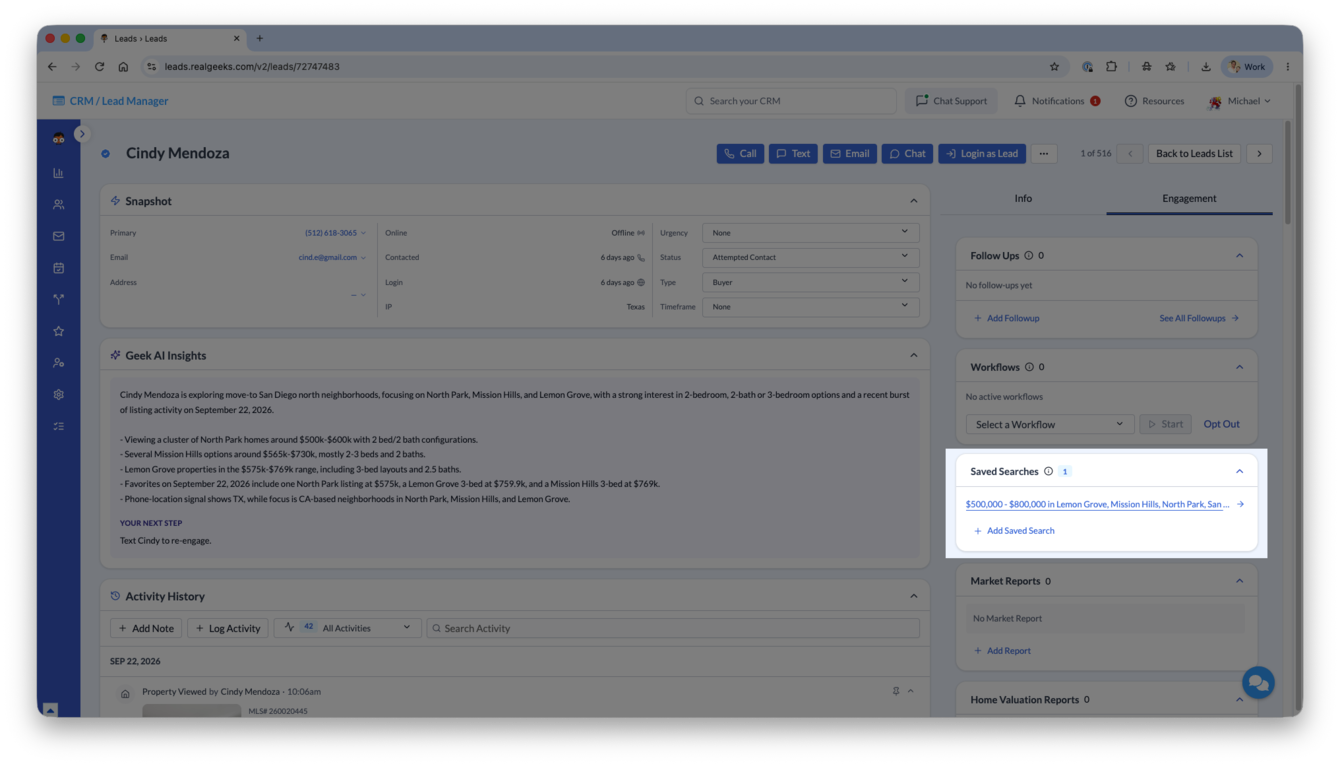 Click the image to enlarge.
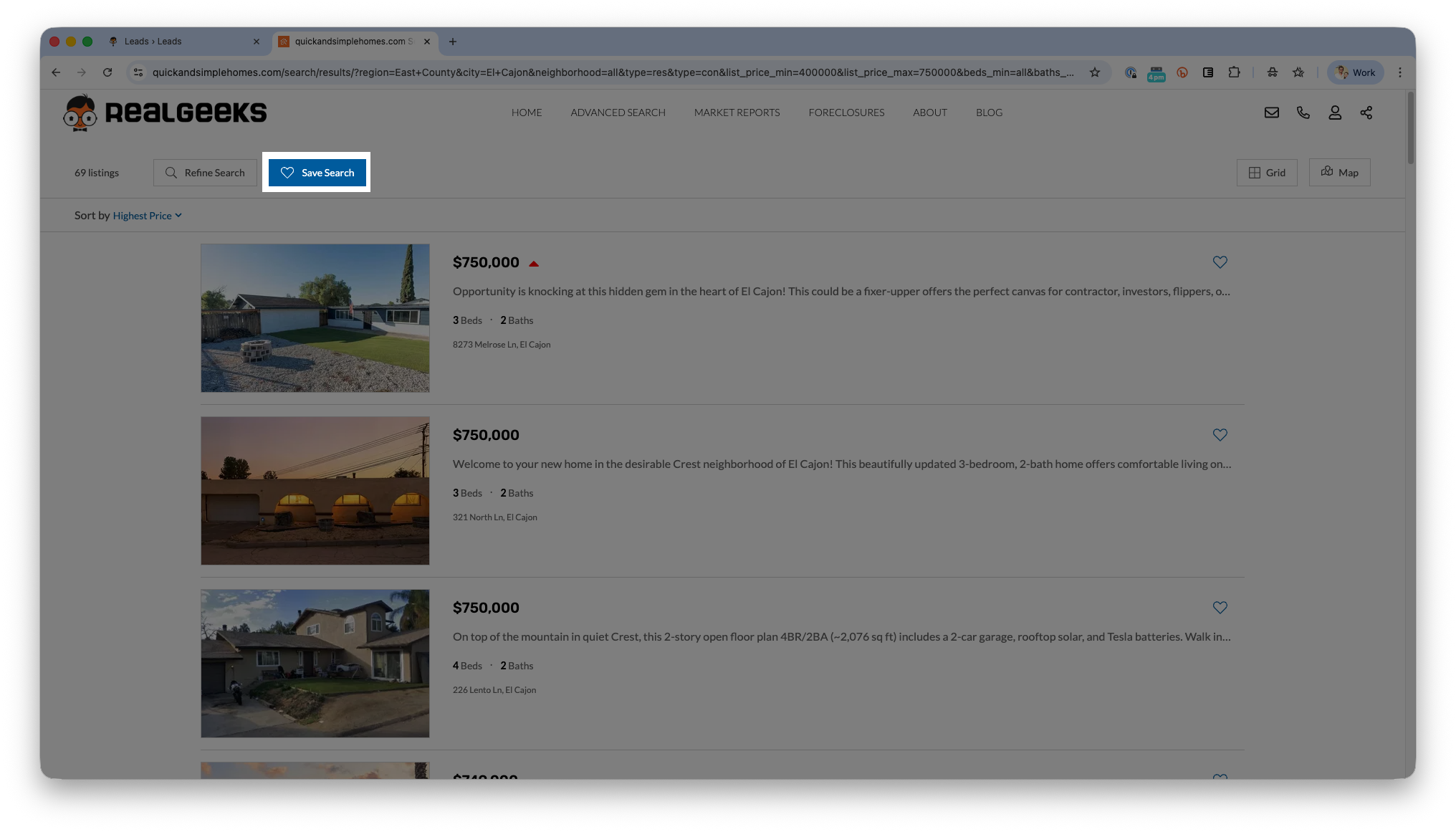 Click the image to enlarge.
Tell the lead what you set up and why it is useful. Mention their area or priorities, explain what to expect, and ask one clear question. Creating the search does not mean an email has already arrived.
Hi [NAME] this is [AGENT] with [COMPANY]. I saw that you signed up on my website and wanted to make sure you get set up to receive updates about some of the properties you viewed.
Listen, confirm their preferences, and adjust the search if needed.
Hi [Name], it is [Agent] with [Company]. I set up home updates for [area] so you can keep an eye on your options. What would make those updates most useful? Call or text me at [Number].
Keep it brief. Give them one easy reason to respond.
Hi [Name], [Agent] with [Company]. I set up home updates for [area] in [price range]. You will get an email when matching listings are added or change. Is that still the right area and budget?
Use the criteria you actually saved. Replace every bracket before sending.
Original practice scripts. Select the text to copy and personalize it. Follow the customer's contact preferences.
Before leaving the lead record, add a follow-up task with a due date. Check whether the emails are reaching them, then ask whether the homes are useful.
Task: Confirm saved-search updates are arriving and useful.
Suggested timing: 3-5 days after setup. Adjust to the customer's chosen frequency and agreed check-in date.
Before contacting them: review Last Email Update in Highlights and the search results. A send record does not prove they read the email.
Finish with: their feedback, any needed search changes, and one next action with a due date.
Hi [Name], it is [Agent] with [Company]. Have you been receiving the home updates for [area]?
If yes, ask: “What would you change about the homes you are seeing?” If no, check sending and help them find the emails. If no listing changes occurred, explain why no email was sent.
The 3-5 day check-in is a suggested practice for this lesson, not a Real Geeks delivery rule.
Review the updated results and confirm what changed with the customer.
Hi [Name], I updated your search to include [change] based on our conversation. Do these homes fit better?
Use saved searches to learn what matters, demonstrate your help, and agree on the next step. Conversion takes time and consistent follow-up; results vary.
Choose a response in your own words, then open an example for a simple talking point and action.
Say: “That makes sense. I can help explain how a home fits what you want. What is one thing you wish you knew beyond the photos?”
Then act: Offer one useful detail you can verify, such as layout, location or property condition. Let their question guide your help.
Say: “No rush. Would occasional updates help you learn what is available while you plan?”
Then act: Match their timing. Agree on the update frequency and a future check-in, or stop updates if they do not want them.
Say: “Thanks for telling me. Would less frequent updates help, or would you prefer to stop them?”
Then act: Honor their choice. Review the schedule and criteria together; follow their preference if they want to unsubscribe.
Say: “What is the biggest thing missing from the homes you are seeing?”
Then act: Separate a must-have from a preference. Confirm one change, edit the search, and ask whether the new results fit better.
Say: “I can check that with you. Have you looked in your spam folder or Gmail's Promotions and Updates tabs?”
Then act: Check Last Email Update and the criteria. If there were no listing changes, no email sends. Explain that before suggesting changes to the search.
Say: “I can verify its current status and help you compare other options. What did you like most about that home?”
Then act: Check the listing before describing availability. Use their favorite feature to guide the next search; avoid promising a home is available.
Say: “Thanks for letting me know. Would you like me to stop these updates?”
Then act: Respect the existing relationship and their contact preferences. Record the response and honor any request to stop.
Say: “Hi [Name], are the home updates still useful, or would you like me to change anything?”
Then act: Use a brief message at the next appropriate follow-up. Do not treat silence as proof they have read the updates or are ready to move.
Illustrative situations and original talking points, not measured claims about how often these objections occur.
Product steps and email behavior: Real Geeks saved-search guide. Open it for screenshots and additional troubleshooting.
Create or review a customer's saved search, notify them, and set a follow-up to check that the updates are arriving and useful.
Open the Lead Manager »
Get instant property value now!